Showing posts with label archive. Show all posts
Showing posts with label archive. Show all posts
Wednesday, December 3, 2008
Archive Attender - HTML Formatting on x64
As a followup to my previous blog located here, this issue has now been resolved. With combined efforts of Azaleos and SherpaSoftware, we have successfully rolled out this update to our first 6 clients. It was much anticipated, and has been well received so far.


Thursday, October 23, 2008
Journaling + Archive = Ideal Litigation Searches -- Part 3 ?
Some notes when installing Journaling with archiving..this is sort of a part 3 to my previous two blogs.


The more journaling mailboxes you utilize, the more you can take advantage of Archive Attender multithreading. It is hard capped at one thread per mailbox though. In order to ensure archiving keeps up in the event of a failure (especially if you are using a single journal mailbox), a good idea is to have tiered archiving policies as sort of layered message traps by date:
An example of the policy to be on the front line would be:
Other policies would be between dates, with the final policy applying to anything older than the second to last policy's criteria.
I've noticed significant improvement once policies were added. This method also sort of safe guards you against back logs by already have a system in place to deal with them.
If you are bent on journaling at the Hub Transport level, you may want to at least split internal and external mail into two different mailboxes. If you are journaling at the database level, then you could go as far as to have a separate journal mailbox for each database.
Monday, October 20, 2008
Adding Trusted Sites - Unblocked Downloads

At times you'll need to add your domain to trusted zones, and allow it to launch items. This is necessary to avoid the annoying popup blocking that occurs when opening archived messages (especially if you do so frequently). To get around this you can do the following:
1. Create a reg file out of the text between the lines. Be sure to replace domain.net with yours.
--------------------
Windows Registry Editor Version 5.00
[HKEY_CURRENT_USER\Software\Microsoft\Windows\CurrentVersion\Internet Settings\ZoneMap\Domains\domain.net]
"https"=dword:00000002
--------------------
Running this will add your domain to the trusted zones.
2. You can then make the change on HKEY_CURRENT_USER \ Software \ Microsoft \ Windows \ CurrentVersion \ Internet Settings \ Zones \ 2
Zone 2 = Trusted Sites
Value data for 2200
• 0 - Automatic prompting for file downloads is Enabled
• 3 - Automatic prompting for file downloads is Disabled
Value data for 2201
• 0 - Automatic prompting for ActiveX controls is Enabled
• 3 - Automatic prompting for ActiveX controls is Disable
Now instead of getting this:

You'll get this right away:

Tuesday, September 9, 2008
Journaling + Archive = Ideal Litigation Searches -- Part2
Abstract
While Custom Views are good for a quick search from your Inbox, sometimes legal departments require an export to PST for burning to CD etc. This area is where Archive Search comes in (or Discovery Attender once the integration happens in the next release!).
Directions
Log on to the archive server, and open AAConsole.exe. Choose Archive Locations from the left hand column, then right click in the white space and choose “Search Archive..” (or alternatively click the magnifying glass.)

Fill out the information to choose which archives to search, sender/recipient, etc. Click Search.

Highlight the emails you wish to export. Right click and choose “Copy Selected Messages to a PST…”
To pull from a specific folder structure, simply sort by folder (scroll to the right in the screen shot).

Enter the location of your PST..and done!

Conclusion
This process is the perfect procedure for compliance related exports for your legal department. With journaling active in the Exchange site, it is much easier to simply query the journaling mailbox instead of single mailboxes.
Journaling + Archive = Ideal Litigation Searches -- Part1
Requiring litigation searches has been a long standing topic for most IT departments. The issue is how to deploy a method to do this that both appeases the litigation team in question, while allowing for the Journaling mailbox to not become encumbered to the point that it ceases to properly function.

My answer is one that I have been deploying to the field in a solution comprised of Exchange journaling, and SherpaSoftware’s Archive Attender.
I set up Journaling at the Hub Transport level in order to catch everything that passes through. This will inherently catch more traffic than setting up Journaling at the database level, and provide the litigation team all of the raw emails they need. The only complications with this are determining the folder structure to which these messages used to belong, and the fact that the Journaling mailbox could quickly grow out of control. The assumption of growing out of control is caused by either a lack of retention restrictions, or depending on the project requirements, poor planning.
That being said, I prefer to use a single Journaling mailbox on its own storage group and database in combination with Archive Attender. The reason for this is that there need not be any prior knowledge of message location, and the search speed is still relatively quick in Archive Attender. It is possible to break these out at the database level which could result in quick searches, but more personnel overhead and management. Something to consider:
We need to create a rule on the Journaling mailbox to pipe all unwanted emails (items such as backup notifications that will never have legal relevance) to some folders to be deleted prior to them being archived. This will save on storage if you have a process that continually sends generic emails or updates. The best way to do this that I know of is:
1. Create MRM policies, folders, and schedules.
a. Open the Exchange Management Console
b. Organization Configuration -> Mailbox -> Manage Custom Folders -> New Customer Folder
c. Create a folder for the items you want to delete.
d. Click the Managed Folder Mailbox Policies tab and create a new policy.
e. Go back to the Manage Custom Folders tab and expand the tree for the folder. Right click the content settings and click properties. Set retention to 1 day, and to delete permanently.

f. Apply the policy to the mailbox by right clicking on the Journal mailbox (under Recipient Configuration), clicking the Mailbox Settings tab, Messaging Records Management, and clicking properties. Choose the policy to apply.
g. Navigate back to Server Configuration -> Mailbox -> Right click Exchange Server and click on the Messaging Records Management tab.
h. Click customize and choose a schedule to run it. Depending on the volume of items going to this folder, you might want to run this a few times during the day.
2. We now need to create a rule in Outlook.
a. Open up Outlook for the Journaling mailbox. Create rules to pipe messages meeting X criteria to the managed folders you created upon arriving.
b. Even though it is best practice no to, we need to leave the Journaling mailbox visible by the GAL so that it is accessible by Archive Attender. We can offset this by only allowing Exchange to email it via:
Set-Mailbox journal -AcceptMessagesOnlyFrom "Microsoft Exchange" -RequireSenderAuthenticationEnabled $True
3. Now that the exceptions are done, we need to configure Archive Attender to run on the mailbox.
a. Create a policy that applies to all messages in the inbox, and archives them without a stub.

b. You will want this policy to run at least once per day if not 2-3 times.
c. You will also want to configure the policy to NOT archive the managed folder that we created by creating an exception in the folder list.
d. Under conditions choose ‘Capture all messages.’
e. The schedule is a dynamic setting that is based on your company size. This could range anywhere from every 10 minutes, to once per day. My default is to perform the task every 30 minutes to ensure that it doesn’t fall behind (if the processing power is there).
f. We will also want to ensure that the archive is searchable and that the policy as applied. Both of these can be set in the properties of the Journal user in Archive Attender.
4. We now have all mail that passes through the Hub Transport server going to the Journaling mailbox, parse for irrelevant mail to be purged, and then pushed off to the archives leaving no stub behind. This is good for a couple of reasons.
a. It provides an easy way to search mail, whether it is through Archive Attender, or another tool from SherpaSoftware called Discovery Attender (Slated to be fully integrated in their next release!)
b. It keeps the Journaling mailbox empty, and efficient!
This concludes part one. I will be writing up part two soon that will cover litigation searches in Archive Attender, and PST exports.
Tuesday, September 2, 2008
Archiving Policies - Hard limit, or Quotas?
I run into this constantly on the job. Many people like the simplicity of a hard set policy; IE archive everything 30 days old or older. My argument to this is that quotas, while requiring a bit more planning and foresight, are eventually much more dynamic and easily managed in the long run.
My personal preference is to set the archive quota to use the warning limit. This way, it is seamless to the user as it prevents the notifications, and doesn't hit the send/receive limit either. Another pro to using the warning quota in Exchange is that because they don't see a warning, they don't misinterpret what is going on and try to archive it themselves. This is compounded if the abili ty to use PSTs has not been disabled via group policy. Hard set limits such as nothing in the last 7 days will help with potential user grief (especially if the slider on the quota limit tab is set toward size rather than date). Also setting the "Do not archive messages smaller than" setting is good to set so that it mitigates the frustration of having to pull down an archive that didn't really get any size savings anyways. Stubs tend to be around 2-3kb, so that part is a no brainer. I like setting it a bit higher due to the balance of overall size savings versus user acceptance. Again this is a culture based decision.
 The quota limit tab is another place decisions come in to play. You'll want to set the percentage of the quota to begin archiving from to at least be less than what the person could receive in a day. That number also affects how far down to archive. The size versus message age debate is one of, surprise, culture. If your company receives a barrage of large images for viewing/editing, you'll obviously take different steps than if your business relies on email primarily as a quick messaging service.
Now to the dynamic part. The best part about this system is that you only need one policy. This means no messing with automation policies down the road, no messy clean ups, etc. Merely change the quota limit in Exchange for the mailstore or individual and viola. Powershell scripts in Exchange 2007 make this a very powerful solution!
My personal preference is to set the archive quota to use the warning limit. This way, it is seamless to the user as it prevents the notifications, and doesn't hit the send/receive limit either. Another pro to using the warning quota in Exchange is that because they don't see a warning, they don't misinterpret what is going on and try to archive it themselves. This is compounded if the abili
 ty to use PSTs has not been disabled via group policy. Hard set limits such as nothing in the last 7 days will help with potential user grief (especially if the slider on the quota limit tab is set toward size rather than date). Also setting the "Do not archive messages smaller than" setting is good to set so that it mitigates the frustration of having to pull down an archive that didn't really get any size savings anyways. Stubs tend to be around 2-3kb, so that part is a no brainer. I like setting it a bit higher due to the balance of overall size savings versus user acceptance. Again this is a culture based decision.
 The quota limit tab is another place decisions come in to play. You'll want to set the percentage of the quota to begin archiving from to at least be less than what the person could receive in a day. That number also affects how far down to archive. The size versus message age debate is one of, surprise, culture. If your company receives a barrage of large images for viewing/editing, you'll obviously take different steps than if your business relies on email primarily as a quick messaging service.
Now to the dynamic part. The best part about this system is that you only need one policy. This means no messing with automation policies down the road, no messy clean ups, etc. Merely change the quota limit in Exchange for the mailstore or individual and viola. Powershell scripts in Exchange 2007 make this a very powerful solution!
Friday, August 29, 2008
Troubleshooting Archive Attender with ixSearch
When a customer lets me know that a member of their user base is unable to retrieve a message via the link in the stub due to the original message not being found, there are a few things to check.
The first thing to check is that the message is actually in the archive location. To do this, first we must determine the GUID associated with the user in question. Open Archive Attender, Click Groups, and navigate to your user.
Right click the user and click 'Edit User Settings..'

You will then want to browse the windows file system and navigate to the user's archive, and then the folder that the message exists in the user's mailbox. Please note that if the stub was moved after the archiving action took place, then you will have to check the folder that it was originally archived from.
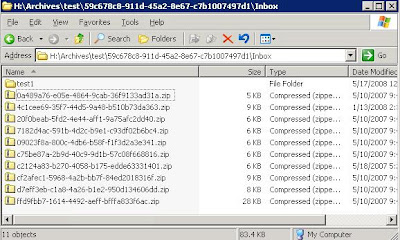
If we can verify that the message is where it is supposed to be, then we need to check the map index to verify that Archive Attender knows where to find it when you click the link in the stub. We can accomplish this with the ixSearch tool.
For Index Path, we choose the _Map folder under the Archive to which the user belongs. For the query, we enter the guid of the message in question. The guid can be taken from the link in the stub. We then click the 'Search' button. If nothing pops up, that means that the map index cannot find this message in the specified archive's map index.

If it does in fact find an entry, as shown above, then we double click the result. It will pop up the following window in which we can see the location that Archive Attender believes the message to reside.

In the case above, it is in the correct place. If this was incorrect from the real location, or it didn't exist in the map index at all, we'd have to run a task to rebuild the map index. Right click the archive in AACONSOLE.exe, click 'Archive Tasks', and then click 'Rebuild Map Index.'

This will reestablish the link between stub, index, and archived message. I have seen two cases where the folder structure somehow got an extra space in one of the names, and the map index did not pick up on this. The fix is to be careful about reading the ixsearch.exe output, and verify that it is exact. If there is a space character issue, you can browse the folder structure and remove the space from the folder name manually to fix the indexing issue.
The first thing to check is that the message is actually in the archive location. To do this, first we must determine the GUID associated with the user in question. Open Archive Attender, Click Groups, and navigate to your user.
Right click the user and click 'Edit User Settings..'

You will then want to browse the windows file system and navigate to the user's archive, and then the folder that the message exists in the user's mailbox. Please note that if the stub was moved after the archiving action took place, then you will have to check the folder that it was originally archived from.

If we can verify that the message is where it is supposed to be, then we need to check the map index to verify that Archive Attender knows where to find it when you click the link in the stub. We can accomplish this with the ixSearch tool.
For Index Path, we choose the _Map folder under the Archive to which the user belongs. For the query, we enter the guid of the message in question. The guid can be taken from the link in the stub. We then click the 'Search' button. If nothing pops up, that means that the map index cannot find this message in the specified archive's map index.

If it does in fact find an entry, as shown above, then we double click the result. It will pop up the following window in which we can see the location that Archive Attender believes the message to reside.

In the case above, it is in the correct place. If this was incorrect from the real location, or it didn't exist in the map index at all, we'd have to run a task to rebuild the map index. Right click the archive in AACONSOLE.exe, click 'Archive Tasks', and then click 'Rebuild Map Index.'

This will reestablish the link between stub, index, and archived message. I have seen two cases where the folder structure somehow got an extra space in one of the names, and the map index did not pick up on this. The fix is to be careful about reading the ixsearch.exe output, and verify that it is exact. If there is a space character issue, you can browse the folder structure and remove the space from the folder name manually to fix the indexing issue.
Subscribe to:
Posts (Atom)