Thursday, January 20, 2011

Outlook 2003 doesn't work with Exchange 2010


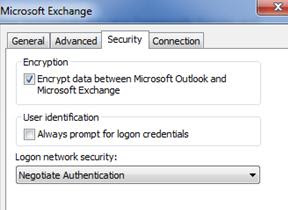
Having issues connecting to your Exchange 2010 mailbox with Outlook 2003? The issue is likely more simple that you think. In Exchange 2010 RTM, RPC encryption is turned on by default. While Outlook 2007/2010 use encryption by default, Outlook 2003 does not.

What this means for people in this situation, is that they have one of two choices:
     1. Turn on encryption in Outlook 2003.
     2. Disable encryption in Exchange 2010.

I recommend the former for security reasons, but it is fairly evident that MS has taken a different stances on this. In new deployments of Exchange 2010 SP1, RPC encryption is turn off by default. My guess is that this was to facilitate more seamless migrations for those clients moving from the 2003 realm to 2010.
Also, notice how I said “new deployments of Exchange 2010 SP1.” In an environment where Exchange 2010 RTM was deployed and upgraded to SP1, it will still be enabled by default.

Here are some quick steps to accomplishing these options:

     1. Modify Outlook to enable encryption:


2. Modify the above value with a GPO:

a. Microsoft has already done the leg work on creating an ADM file for this. (See link below)

     3. Disable encryption on Exchange 2010 SP1 Client Access Servers:
a. Set-RpcClientAccess –Server CAS1 –EncryptionRequired $False

Official TechNet article on the topic including a custom ADM file that accomplishes #2 (my recommendation).

Tuesday, January 18, 2011

Managing Large Quantities E-mail with Outlook / Exchange 2010

I am always surprised at how many people fail to use Outlook to its full potential. Here are a few tips for high mail volume individuals that should make life much easier.

Rules
Most of us use Outlook rules, but we probably don’t use them as well as we could. In the days of old, I know many people had issues running into the max size limit for their rules. This was frustrating, but is now largely avoidable with Exchange 2010. In Exchange 2010, domain-based rules can now be held on the server side (they used to only work client-side which was nearly useless for people not logged into Outlook 100% of the time), allowing us to avoid adding all those clumsy names to our rules.
Example:


Another thing about Outlook rules, is the fact that a lot of people utilize rules for sorting e-mail for initial reading. In my opinion, this is a pretty poor use of e-mail rules. Rules should be (again, in my opinion) used more for filing e-mails for retrieval at a later date, while Search Folders should be utilized for easily locating new important mail, or mail with common special criteria. This is a great way to stay on top of what is going on when you receive excessive amounts of e-mail.
If you want to find an older piece of mail in your folder structure, you should be able to remove most of the variables from the equation by where you find the e-mail, leaving only the final criteria (typically body/subject/attachment). Sure, you can Ctrl+Shift+F, but who wants to take the time to do that when your Outlook rules can logically sort them for you?
A good example of a rule to sort with a broad brush would be move all mail from people belonging to specific DL to a certain folder.

Example:


In the above example, all e-mails coming from members of the Professional Services team would be placed in the ‘Deployment’ folder. If you had a few favorite individuals to break out from there, feel free to do so in separate rules; just be sure to move that rule higher up in priority, and add the clause to stop processing more rules so that you don’t end up with duplicates!

Search Folders
I am always astonished by how few people actually know about search folders. You might be asking yourself: “What are search folders, where are they, and how do I create them?”
Search folders are essentially query folders that dynamically build based on criteria across your entire mailbox. This allows it to populate with the mail you need to read, without moving them from the desired final destination for long term retrieval and organization. Near the very bottom of your folder structure, they are hidden like diamonds in the rough:
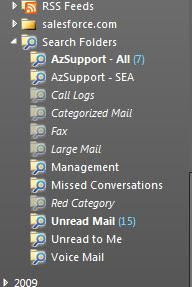


Here are some excellent uses for search folders that will make your life easier:
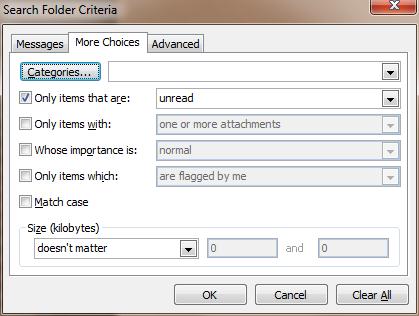
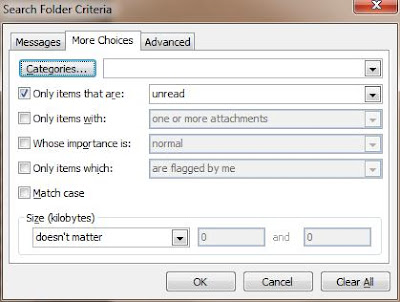
    1. Unread Mail to Me (Any mail that is unread with your name on the To or CC line)
a. Mail that is sent directly to you is likely much more important to you, than e-mail sent to one of many distribution groups you may be a member of.
b. Example:


     2. All unread mail from my managers
a. You’ll want to be sure you don’t miss any e-mail on process, or requests from management.
     3. All unread mail to a specific group (Operations team, Sales team, Executive team, etc)
     4. All Unread Mail
a. A quick catch-all to avoid diving through your many, many folders.
     5. High importance e-mails
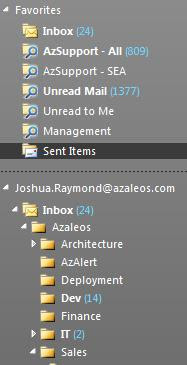
Don’t forget to pin these glorious folders to your favorites for easy access!
Monday, January 17, 2011

Discovery/Litigation with RBAC


Have you tried running the Export-Mailbox command in Exchange 2010 SP1, only to be denied? These commands were typically utilized in Exchange 2007 for purging messages with certain criteria from mailboxes en masse, or for discovery searches. Import-Mailbox and Export-Mailbox now technically require the RBAC role Mailbox Import Export according to TechNet. This role was slated to not be assigned to any role group by default in Exchange 2010 SP1 (it was assigned to the Organization Management role in RTM). The only problem with this statement is that according to PMs at MS, this command is now deprecated despite TechNet articles discussing their use.
Exchange 2010 SP1 now splits this functionality into the Search-Mailbox and New-ExportMailboxRequest cmdlets. Search-Mailbox will perform a search and subsequent export to a mailbox (including deleting the original from the source mailbox if desired). This functionality satisfies the vacuum of Export-Mailbox’s departure for tearing messages with certain criteria out of user mailboxes in bulk. The New-ExportMailboxRequest cmdlet covers the need to export data to a PST file, and both of these cmdlets can search the mailbox dumpster.
While these commands are good, they are also quite powerful, and can be more than a legal worker would require. These commands are available to a user that is added to the ‘Discovery Management’ role group, however, which is also necessary to perform discovery searches in the more conventional way (via the Exchange Control Panel). Luckily most users won’t have the know-how, nor the means (Exchange Management tools) to perform these tasks in this manner.
The Discovery Management role group encompasses the Mailbox Search and Legal Hold roles, and allows things like multi-mailbox search, as well as saving results to a secured discovery mailbox via the ECP as mentioned above. A quick recap of how to get this process rolling is to:
Add the users to the Discovery Management RBAC role group.

      Add-RoleGroupMember -Identity "Discovery Management" -Member


Create a Discovery Mailbox to act as a secure repository for search results.New-Mailbox SearchResults -Discovery -UserPrincipalName SearchMailbox@domain.com

    Instruct the users to utilize the Exchange Control Panel (ECP) to perform multi-mailbox searches, and export the results to a Discovery Mailbox.
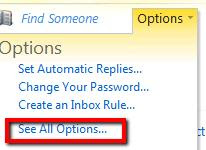
For a legal user to access the search functionality, they need log into their ECP, and choose ‘Options’ in the upper-right hand corner, and choose ‘See All Options…’


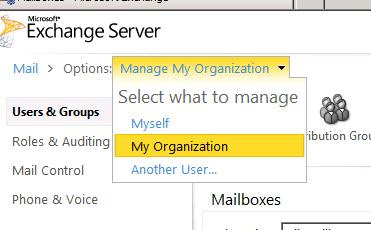
Pull down the management options, and choose ‘My Organization’


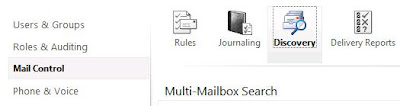
Choose ‘Mail Control,’ and click ‘Discovery’


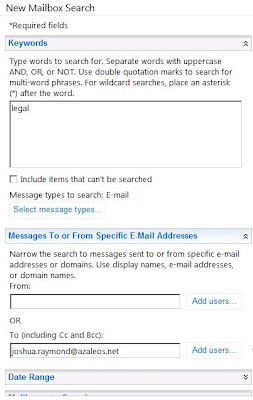
Enter your search criteria:


Choose the Discovery mailbox that we created earlier to place the results (or choose to let it estimate):


Check the status:


From here you can click on the ‘Open’ link on the right, or the link in the notification e-mail if you chose to have one in order to access your results.