Showing posts with label Outlook. Show all posts

Thursday, January 20, 2011

Outlook 2003 doesn't work with Exchange 2010


Having issues connecting to your Exchange 2010 mailbox with Outlook 2003? The issue is likely more simple that you think. In Exchange 2010 RTM, RPC encryption is turned on by default. While Outlook 2007/2010 use encryption by default, Outlook 2003 does not.

What this means for people in this situation, is that they have one of two choices:
     1. Turn on encryption in Outlook 2003.
     2. Disable encryption in Exchange 2010.

I recommend the former for security reasons, but it is fairly evident that MS has taken a different stances on this. In new deployments of Exchange 2010 SP1, RPC encryption is turn off by default. My guess is that this was to facilitate more seamless migrations for those clients moving from the 2003 realm to 2010.
Also, notice how I said “new deployments of Exchange 2010 SP1.” In an environment where Exchange 2010 RTM was deployed and upgraded to SP1, it will still be enabled by default.

Here are some quick steps to accomplishing these options:

     1. Modify Outlook to enable encryption:
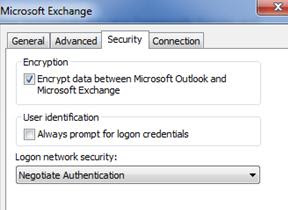


2. Modify the above value with a GPO:

a. Microsoft has already done the leg work on creating an ADM file for this. (See link below)

     3. Disable encryption on Exchange 2010 SP1 Client Access Servers:
a. Set-RpcClientAccess –Server CAS1 –EncryptionRequired $False

Official TechNet article on the topic including a custom ADM file that accomplishes #2 (my recommendation).

Tuesday, January 18, 2011

Managing Large Quantities E-mail with Outlook / Exchange 2010

I am always surprised at how many people fail to use Outlook to its full potential. Here are a few tips for high mail volume individuals that should make life much easier.

Rules
Most of us use Outlook rules, but we probably don’t use them as well as we could. In the days of old, I know many people had issues running into the max size limit for their rules. This was frustrating, but is now largely avoidable with Exchange 2010. In Exchange 2010, domain-based rules can now be held on the server side (they used to only work client-side which was nearly useless for people not logged into Outlook 100% of the time), allowing us to avoid adding all those clumsy names to our rules.
Example:


Another thing about Outlook rules, is the fact that a lot of people utilize rules for sorting e-mail for initial reading. In my opinion, this is a pretty poor use of e-mail rules. Rules should be (again, in my opinion) used more for filing e-mails for retrieval at a later date, while Search Folders should be utilized for easily locating new important mail, or mail with common special criteria. This is a great way to stay on top of what is going on when you receive excessive amounts of e-mail.
If you want to find an older piece of mail in your folder structure, you should be able to remove most of the variables from the equation by where you find the e-mail, leaving only the final criteria (typically body/subject/attachment). Sure, you can Ctrl+Shift+F, but who wants to take the time to do that when your Outlook rules can logically sort them for you?
A good example of a rule to sort with a broad brush would be move all mail from people belonging to specific DL to a certain folder.

Example:


In the above example, all e-mails coming from members of the Professional Services team would be placed in the ‘Deployment’ folder. If you had a few favorite individuals to break out from there, feel free to do so in separate rules; just be sure to move that rule higher up in priority, and add the clause to stop processing more rules so that you don’t end up with duplicates!

Search Folders
I am always astonished by how few people actually know about search folders. You might be asking yourself: “What are search folders, where are they, and how do I create them?”
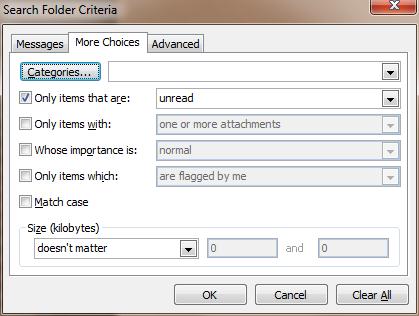
Search folders are essentially query folders that dynamically build based on criteria across your entire mailbox. This allows it to populate with the mail you need to read, without moving them from the desired final destination for long term retrieval and organization. Near the very bottom of your folder structure, they are hidden like diamonds in the rough:


Here are some excellent uses for search folders that will make your life easier:
    1. Unread Mail to Me (Any mail that is unread with your name on the To or CC line)
a. Mail that is sent directly to you is likely much more important to you, than e-mail sent to one of many distribution groups you may be a member of.
b. Example:


     2. All unread mail from my managers
a. You’ll want to be sure you don’t miss any e-mail on process, or requests from management.
     3. All unread mail to a specific group (Operations team, Sales team, Executive team, etc)
     4. All Unread Mail
a. A quick catch-all to avoid diving through your many, many folders.
     5. High importance e-mails
Don’t forget to pin these glorious folders to your favorites for easy access!


Tuesday, January 27, 2009

Blackberry Users Setting Out of Office in Outlook 2003 Won't Update on Exchange 2007

There is a known issue that I decided to post on because there seems to be a relatively small amount of information out regarding it.  The problem is blackberry users configuring their out of office in Outlook 2003, but the change doesn't show up on OWA.  This can cause old out of office settings to be used as well, and only seems to apply when the user has the unique cocktail of Outlook 2003 and a blackberry that connect to an Exchange 2007 server.

The known work-arounds for this issue are to use Outlook 2007, or run Outlook with the /cleanrules switch.  You will, of course, want to export your rules first just in case.

Unfortunately RIM does not support the OOO feature (a phone call from our NOC to RIM discovered this) which was technically re-written in Exchange 2007. They supposedly released a fix in a service pack, but the BES in this case had the service pack which does not increase my faith in RIM despite the love I harbor for its constant desire for attention (reboots).

Wednesday, December 17, 2008

RPC/HTTP -- Outlook Anywhere Login Prompts Fail

The issue came up where users couldn't gain access to their email via RPC over HTTP / Outlook Anywhere.  An authentication prompt comes up, but does not allow the user to authenticate.


When checking their configurations, everything seemed at first to be in order.  Upon checking into it further, I noticed that their mail FQDN is mail.domain.com, but it looks like the common name on the certificate is just domain.com (though mail.domain.com was also on the cert under the subject alternative names).  While the cert was registered as valid, it did not match up for the mutually authenticated session.  The problem?  The red outlined boxes didn't match up. 


After changing the principal name to msstd:domain.com rather than msstd:mail.domain.com such that it matched the certificate name, the authentication began to work once again.

Monday, December 8, 2008

Outlook Anywhere Failing - RPC End Points - 6004

It was brought to my attention that autodiscover was not behaving correctly externally.  I ran it through Microsoft's Exchange connectivity tester @ http://www.testexchangeconnectivity.com/ and received the following output:


To resolve this first simple part I just went into the EMS and gave it an ExternalURL via:

Get-AutodiscoverVirtualDirectory | set-AutodiscoverVirtualDirectory -ExternalUrl https://autodiscover.domain.com/Autodiscover/Autodiscover.xml

I now received this error:


"Failed to ping RPC Endpoint 6004 (NSPI Proxy Interface)"

..and also RPC_S_SERVER_UNAVAILABLE error (0x6ba) was thrown by the RPC Runtime

Most curious about an RPC error at this level.  Perhaps a connection between the Hub/Cas and MBX server or MBX server and AD/DCs/GCs?  The environment was not 2008, nor was it using IPv6.

The following is what fixed my issue:

Using the configurations here I was able to remedy the situation.  Basically what happened was that it could not use DSPROXY via HTTP, and it is a known issue.  The fix is to:

1. Changes for Mailbox servers..

a. create a DWORD called "Do Not Refer HTTP to DSProxy" at HKLM\System\CCS\Services\MSExchangeSA\Parameters\ and the value set to 1.  This will, as it spells out, stop it from trying to use DSProxy when using HTTP.
b. HKLM\System\CCS\Services\MSExchangeSA \Parameters key "NSPI Target Server" to the FQDN of the domain controller that you would like used for profile creation.

2. Changes for Client Access Servers..
a. Ensure that the "PeriodicPollingMinutes" key at HKEY_LOCAL_MACHINE\System\CurrentControlSet\Services\MSExchangeServiceHost\RpcHttpConfigurator\ is set to zero.  This will ensure that the system won't continue to over write our settings every 15 minutes.
3. b. Also modify "ValidPorts" at HKLM\Software\Microsoft\RPC\RPCProxy such that it lists the DCs which can be accessed via port 6004.  An example of this would be:


domaincontroller.domain.com:6004;domaincontroller2.domain.com:6004


4. Changes for all Global Catalog (GC) servers..
a. Be sure that there is an REG_MULTI_SZ entry created named NSPI interface protocol sequences at HKLM\System\CurrentControlSet\Services\NTDS\Parameters\ and the value set to "ncacn_http:6004"


Testing autodiscover/Outlook anywhere now yields the following output in the connectivity tester:


You can double check these settings by configuring a profile in Outlook, then Ctrl+RightClicking the outlook icon on the system tray, and running "Test E-Mail Autoconfiguration."

For the full explanation I highly recommend reading the official blog post by Siddhartha Mathu at:


Good read!

Thursday, October 16, 2008

How to Publish More Free Busy Data

It has been a bit since I posted, so I figured I'd toss out some easy fodder for those that don't know (which seems to be a lot more than I thought initially).

Unfortunately there is no quick easy server side change to publish more free/busy data for a user.  It is a client side setting.  The setting itself can be deployed this way:

Tools -> Options ->Calendar Options-> Free/Busy Options -> Permissions Tab -> Other Free/Busy.. -> Modify the number of months to publish.


Being a client side change, if you want to roll it out on a mass scale you'll either have to build it into your ghost images, or you'll have to roll out a GPO/login script.  I went to find the exact one, and ran across the Exchange team's blurb on it:

http://msexchangeteam.com/archive/2004/06/10/152698.aspx 

Thursday, September 18, 2008

Sychronization Errors - 0X80190193 / 0X8004010F

12:11:28 Synchronizer Version 11.0.8200

12:11:28 Synchronizing Mailbox 'Kym Thomas'

12:11:28 Done

12:11:28 Microsoft Exchange offline address book

12:11:28        0X8004010F

AND

9:44:33 Synchronizer Version 12.0.6315

9:44:33 Synchronizing Mailbox 'Paul Morris'

9:44:33 Done

9:44:35 Microsoft Exchange offline address book

9:44:35 0X80190193


These can commonly be caused by the SSL check box being checked on the OAB virtual directory.  This requires an iisreset to undo.

Friday, August 29, 2008

Outlook 2003 GAL Displays EX type / Creating Detail Templates

The issue has been raised on occasion of Outlook 2003 not providing a good way to retrieve a user’s email address in the GAL. The ‘Email Address’ field in the GAL is of EX type, and displays as the LegacyExchangeDN, and there is no ability to copy the email address from the contact properties.

When looking in Outlook 2003’s GAL, you probably see something like this:


In Outlook 2007 you see the following:


The reason for this is that Outlook 2003 uses the EX type for the Email Address column and Outlook 2007 uses the SMTP type. The EX type is an internal type that exchange uses, and returns a value equal to the LegacyExchangeDN. Unfortunately, Microsoft has hardcoded the GAL view from being modified. A great way to work around this is to use the Details Template Editor under the Exchange 2007 Toolbox (or in Exchange 2003’s ESM, under Recipients), and create a field for email address in the property template. Performing this action is actually good to do anyways for both 2003 AND 2007 clients given the fact that it displays the user or contact’s email address in a field that can be copied if needed.


Exchange 2003 – ESM


Exchange 2007 – EMC

The following example will detail specifically for Exchange 2007, though it can be more or less applied to 2003 with modifications.


Choose the General tab, and either highlight a field to change, or drag out a new one. I chose to change the Alias field to Email Address in this example as it was the least needed field given the circumstances, and it would cut down on clutter. You can change which ever field you want, or create a new one by dragging boxes from the left hand column. To do this, we select Alias, and change the label field on the right to &Email Address. We then click the text field, and select Email Address from the drop down menu.

We now have a field in the properties of users for the SMTP Email Address to be displayed in a copy friendly fashion! This procedure can be repeated for contacts, etc.